Who shares next?
Give everyone thinking time, then choose a student to share an answer or question. Allow a pass where appropriate for your class.
FOR CLASSROOM ACTIVITIES
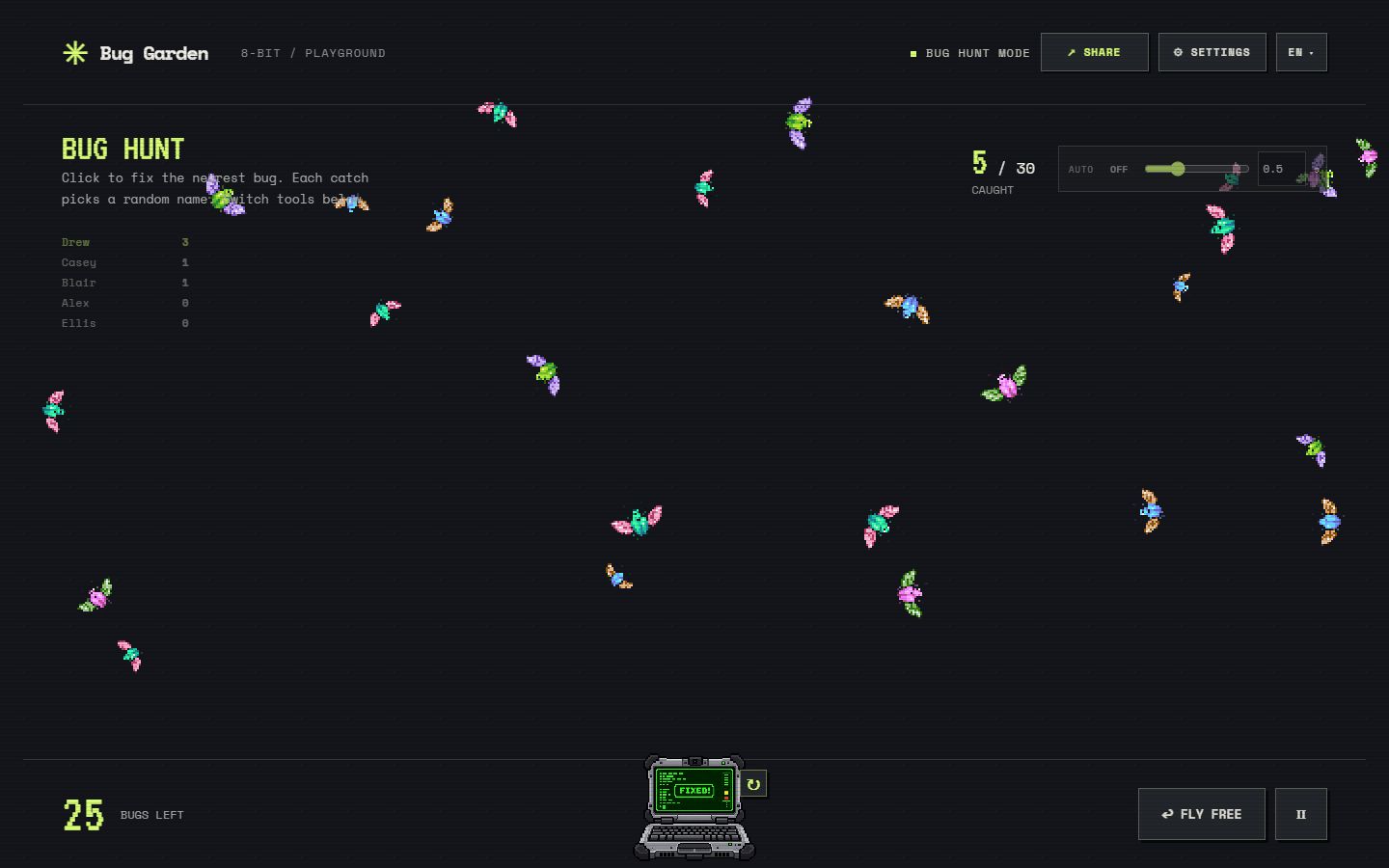
Choose who joins the next activity with a small pixel game. Paste your class list, choose Quick Pick and catch a bug to reveal a student’s name.
By default each pick is independent. Turn on No Repeats in Settings and every student is picked once before anyone is picked again.
Give everyone thinking time, then choose a student to share an answer or question. Allow a pass where appropriate for your class.
Choose from a list of willing helpers for a short activity or demonstration.
Use a quick selection between review questions, or a short Bug Hunt with team nicknames for a playful break.
To give every student exactly one turn, turn on No Repeats in Settings. The rotation continues across picks and page reloads in the same browser; choose Start New Rotation to begin again with the full class.
Bug Garden gives you something to do during the reveal: catch a bug instead of spinning a wheel. Try the sample list on your classroom display before the lesson to check text size and controls. See the comparison with a name wheel to decide which experience fits your activity.
Names and game settings are processed in the browser, and the current list is saved locally when available. Participant names are excluded from the game’s analytics events. A shared game link contains the names, so use fictional names in public examples. Read the privacy policy.
Yes. Turn on No Repeats in Settings. Each student is picked once before anyone is picked again, and the number of students left appears after each pick. Without it, every pick is independent and names can repeat.
Yes. The browser uses Web Crypto to choose an unbiased random index from your list. Catching a particular bug does not select a particular student. Read the explanation.
Open the site in a modern browser and project the screen. Try the sample list before class to check readability on your display.
Yes. You can enter names, use Quick Pick and play Bug Hunt for free. No account or installation is required.
Your current list and settings are saved in this browser when local storage is available. Return on the same browser to reuse them. There is not yet a library of separately named lists.
The shared link contains your list and game configuration. Anyone who receives it can read the names. Use nicknames or fictional names for public demos.